
Bottom Line Up Front: Gemini CLI—and agentic tools like it—can do far more than write code. With the right workflow, they can take over much of the entire software development lifecycle, from branching and committing to monitoring your applications in staging and production.
I've been building multiple new apps using this workflow over the past few weeks, and it's been incredibly fast and, honestly, fun. Let me walk you through exactly how I'm using Gemini CLI to multiply my productivity.
What is Gemini CLI?
Gemini CLI is Google's open-source AI agent that runs directly in your terminal. Unlike web-based chatbots, it's designed for developers who live in the command line. It understands your codebase, executes shell commands, reads and writes files, and can even search the web for real-time information.
Here's what makes it stand out:
- Free tier: 60 requests/minute and 1,000 requests/day with a personal Google account
- Powerful models: Access to Gemini 3 with a 1M token context window
- Built-in tools: Google Search grounding, file operations, shell commands, web fetching
- Extensible: MCP (Model Context Protocol) support for custom integrations
- Open source: Apache 2.0 licensed
If you've tried other AI coding tools and felt limited by their context windows or their inability to understand your full project, Gemini CLI is a breath of fresh air. For a deeper comparison of how Gemini stacks up against competitors, check out my Gemini vs Claude vs ChatGPT value comparison.
You can install or run Gemini CLI without a global installation using npx:
# Run the latest version directly
npx @google-gemini/gemini-cli@latest
The Multi-Tab Workflow: Parallel Productivity
Here's where things get really powerful. One of my favorite ways to use Gemini CLI is by running multiple instances in separate terminal tabs, each working on a different task or even a different project.
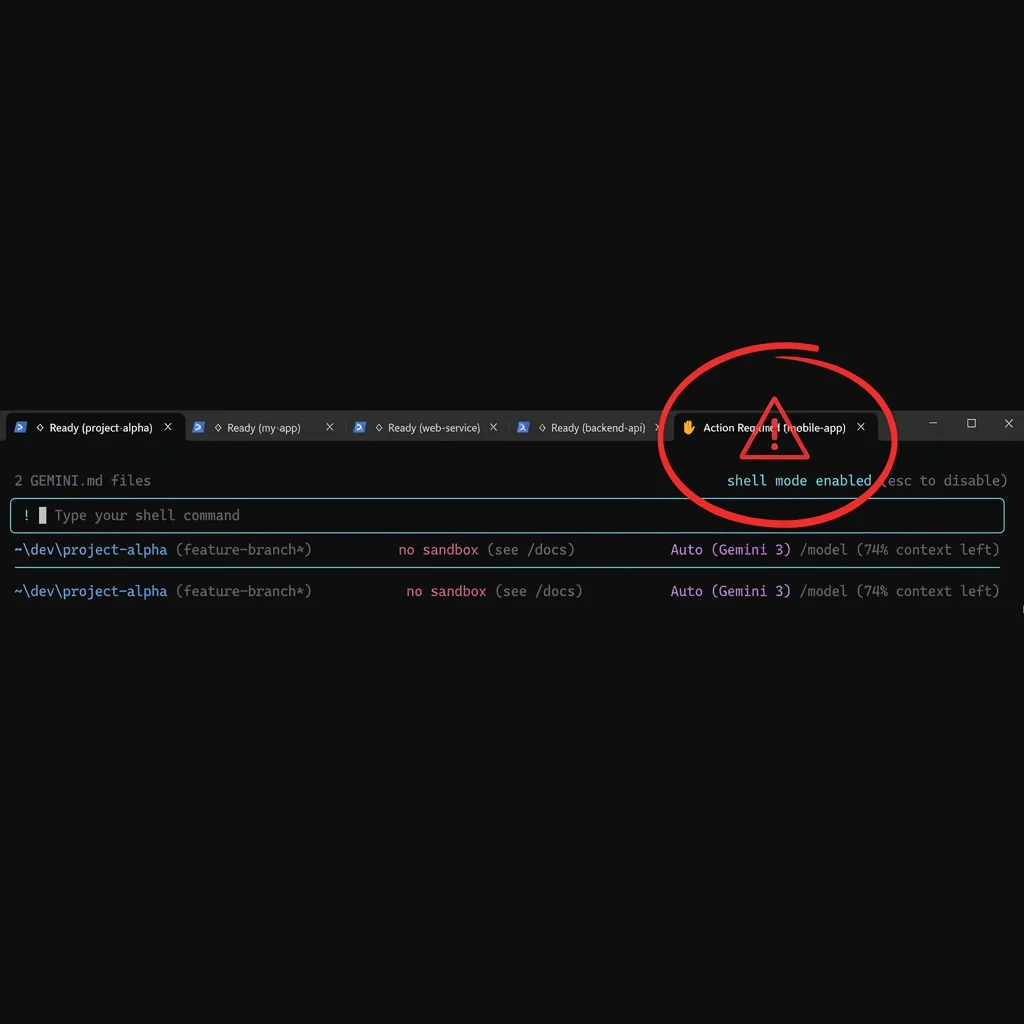
Multiple Gemini CLI sessions running in parallel. The orange "Action Required" tab shows when a session needs input.
Why This Works
Each terminal tab runs an independent Gemini CLI session. You can assign each session a specific task:
- Tab 1: Refactoring the authentication module
- Tab 2: Writing unit tests for a utility library
- Tab 3: Researching and implementing a new API integration
- Tab 4: Monitoring a deployment and checking for errors
The beauty is that Gemini CLI will alert you when it needs attention. You'll see a visual indicator (like "Action Required") in the tab title, so you can work on other things and switch context only when necessary. This lets you maintain multiple sessions simultaneously without constant babysitting.
Avoiding Git Conflicts with Parallel Work
If you're running multiple CLI sessions on the same repository, you might be worried about them stepping on each other's toes. Here's the trick: have the CLI work on separate branches.
I'll typically instruct each session to create its own feature branch before making changes:
# Command to instruct the AI to isolate its work
> Before making any changes, create a new branch \
  called feature/auth-refactor and switch to it.
This way, each session's work is isolated. When a session finishes, I can review the diff and merge it at my leisure. Git becomes the coordination layer.
Pro Tip
Tell Gemini CLI to commit frequently with descriptive messages. This gives you a clear history and makes it easy to cherry-pick or revert specific changes.
Project Context: GEMINI.md and AGENTS.md
Agentic coding works best when the AI understands your project's unique context. Simply telling the agent to "write a feature" isn't enough; you need to provide guardrails, coding style, and project-relevant guidelines.
Gemini CLI supports both GEMINI.md and AGENTS.md standards. These files act as a "playbook" for the AI.
Why You Need a Context File
By placing a context file in your project root, you can specify:
- Coding Conventions: Tell the agent to use
camelCasefor functions or requireJSDoccomments. - Tech Stack: Define the frameworks (e.g., Next.js 15, Tailwind CSS) so it doesn't suggest incompatible libraries.
- Testing Guidelines: Instruct it to always write tests using your preferred runner (like Vitest or Jest).
- Project Structure: Give it a map of where important files live.
Example GEMINI.md
# Coding Conventions
- Use ESM modules for modern Node.js conventions
- Use functional components for React
- Prefer 'const' over 'let'

# Project Standards
- Always run 'npm run lint' after finishing tasks
- Always add unit tests in the '__tests__/' directory
- Use Tailwind CSS for all styling
The Gemini CLI automatically reads these files, ensuring that all suggestions are grounded in your project's reality, not just general knowledge. It's a simple yet powerful way to ensure consistency.
YOLO Mode: Set It and Forget It
For tasks where you're confident in the agent's abilities and the stakes are low, Gemini CLI offers YOLO mode—a way to disable the interactive approval prompts and let the agent run autonomously.

YOLO mode enables autonomous execution without approval prompts.
How to Enable YOLO Mode
You can activate YOLO mode in two ways:
- During a session: Press
Ctrl + Yto toggle YOLO mode on or off. - On startup: Launch with the
--yoloflag:
# Start Gemini CLI in autonomous mode
gemini --yolo
⚠️ Important Caveat
YOLO mode is powerful but comes with risks. The agent will execute shell commands, write files, and make changes without asking for confirmation. Only use this for:
- Low-stakes tasks (e.g., generating boilerplate, documentation)
- Projects with version control where you can easily revert
- Sandboxed or disposable environments
For me, YOLO mode shines when I'm setting up a new project. I'll say something like:
# Example complex scaffolding command
> Initialize a new Next.js 15 app with TypeScript, \
  Tailwind CSS, and ESLint. Set up a basic folder \
  structure with /components, /hooks, and /utils. \
  Create a placeholder home page.
And then I walk away. When I come back, the project is scaffolded and ready.
Advanced Use Cases: Beyond Just Code
This is where the real magic happens. Gemini CLI isn't just a code generator—it's a general-purpose agentic terminal assistant. Here are some powerful ways I've been using it:
1. Let It Manage Git For You
I've started delegating most of my Git workflow to Gemini CLI:
- Creating branches: "Create a new branch for the payment integration feature"
- Staging and committing: "Stage all changes and commit with a message describing the auth refactor"
- Pushing: "Push the current branch to origin"
- Handling rebases: "Rebase this branch onto main and resolve any conflicts"
The CLI understands Git deeply. It can analyze the repo history, handle merge conflicts with context, and even summarize what changed. For related reading, check out my review of Google Jules, which takes this autonomous Git workflow even further.
2. Writing Infrastructure as Code
I've been using Gemini CLI to help write and maintain AWS CDK and Terraform configurations. Because it can read your existing infrastructure files and understand the context, it's remarkably good at building onto what you already have.
# Natural language infrastructure command
> Add a new Lambda function to the stack that triggers \
  on S3 uploads and writes metadata to the existing \
  DynamoDB table.
The CLI will read your existing stack, understand the resource names, and generate code that actually integrates with your current architecture.
3. Monitoring AWS Logs Automatically
This one has been a game changer for debugging. I'll open a dedicated terminal tab with Gemini CLI and instruct it to watch my logs:
# Log monitoring and analysis command
> Monitor the CloudWatch logs for the log group: \
  /aws/lambda/my-function. Summarize any errors \
  in the last 10 minutes and suggest potential fixes.
Gemini CLI can use the AWS CLI to fetch logs, parse them, and provide intelligent summaries. It's like having a junior DevOps engineer watching your logs and tapping you on the shoulder when something goes wrong.
Get Gemini Advanced
Gemini CLI is free to use, but for expanded rate limits and access to Gemini 3, upgrade to Google One AI Pro.
My Current Workflow
It's genuinely transformed how I work. I'm no longer the bottleneck for every line of code. Here is my "daily driver" setup:
- The Morning Spin-up: Open 4-5 terminal tabs, each with Gemini CLI pointed at a different project or branch.
- Parallel Tasking: Assign each session a specific objective (e.g., "add pagination to the API", "write tests for the user service").
- Asynchronous Execution: Work on high-level architecture or attend meetings while the agents work. I just glance at the tabs for that orange "Action Required" indicator.
- Final Review: When a session completes, I review the changes, run the tests myself, and merge the branch.
Final Thoughts
Gemini CLI is one of those tools that seems simple on the surface but reveals incredible depth the more you use it. The combination of:
- Multi-tab parallel sessions with attention alerts
- YOLO mode for autonomous execution
- Deep Git integration for branch and commit management
- IaC support for AWS CDK, Terraform, and more
- Log monitoring for real-time debugging
...makes it an essential part of my developer toolkit.
If you're already comfortable in the terminal and want an AI assistant that meets you where you are, give Gemini CLI a try. It's open source, free to start, and only gets better with a Google One AI Pro subscription.