The Short Version
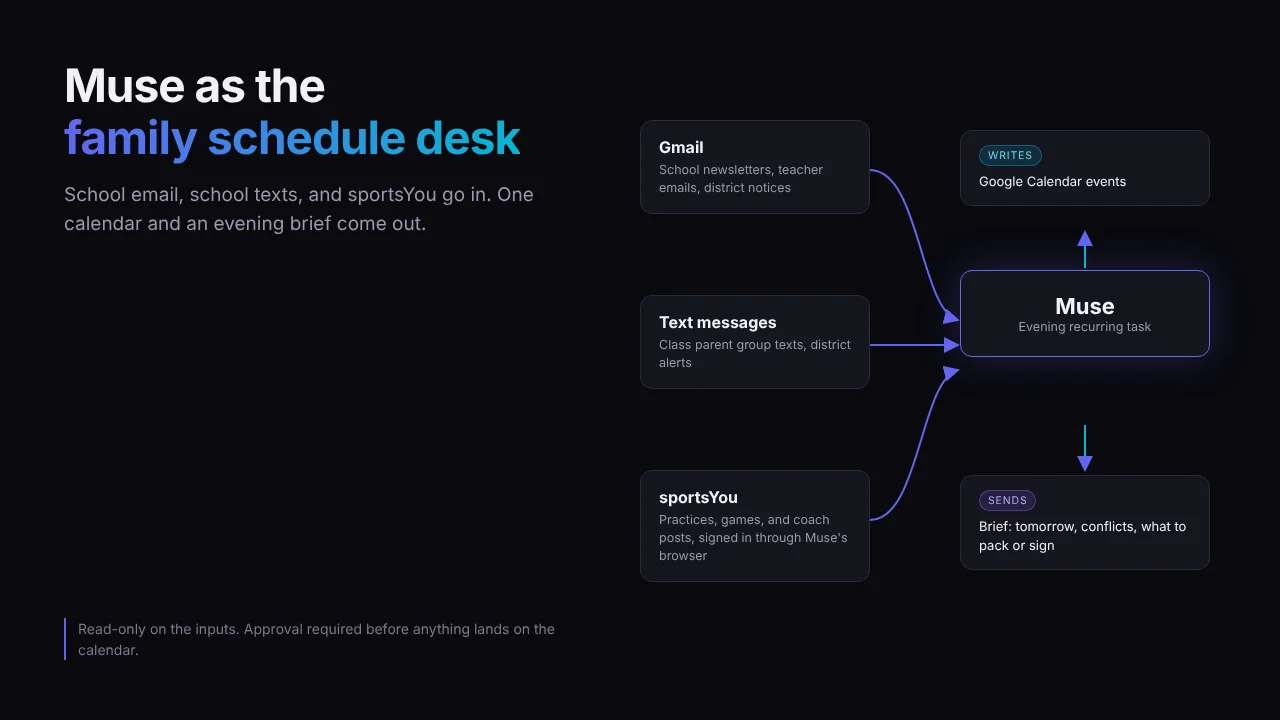
I use Meta Muse, Meta's new AI agent, to keep the family calendar current without spending hours a week on it. It reads school emails and texts, checks the kids' teams in sportsYou, updates Google Calendar, and sends me an evening brief with tomorrow, changes, conflicts, and prep. If you're juggling three or more sources of "where do I need to be," it's worth an evening to set up.
If your school and teams already live in one app, skip it, but I highly doubt it.
Most of what I write about in AI is tooling for work. This one's for the other job, the one where a practice moves at 4pm and nobody tells the person driving. (It's always the person driving.)
The problem was never a lack of information. It was that the information lived in four places. The school sends email, the class parents text, the coaches post in sportsYou, and my calendar knew about none of it unless I typed it in.
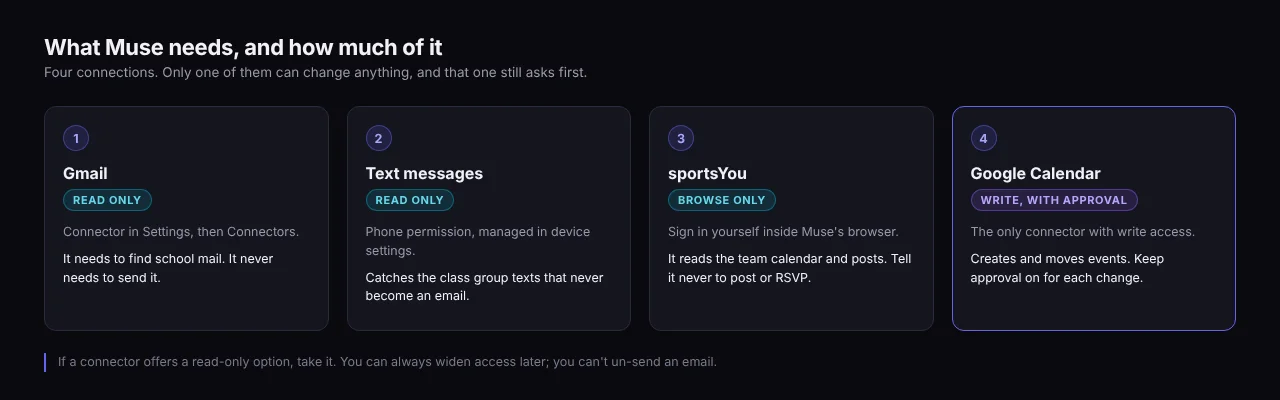
Three read-only inputs and one output that can write. Keep it that lopsided.
What Muse Actually Is
Muse is Meta's personal AI agent, announced September 8, 2026 and rolling out to US adults on iOS, Android, and muse.ai. You can also message it inside WhatsApp.
The difference from a chatbot is where it runs. Each account gets a Muse Secure VM, which Meta describes as "a dedicated secure computer with its own browser." Muse works in that machine, keeps going after you close the app, and comes back when something changes or it needs your approval.
A second agent called Sentinel sits on the same machine and gates what Muse can reach on the internet. That matters for this setup, because one of my four sources (sportsYou) doesn't have a connector, and Muse reaches it through that browser instead.
You can also rename it. Mine's called Jeeves, a nod to Ask Jeeves, the butler-themed search site from before everyone just Googled things. It finally answers the questions I actually have, like where the kids need to be on Saturday.
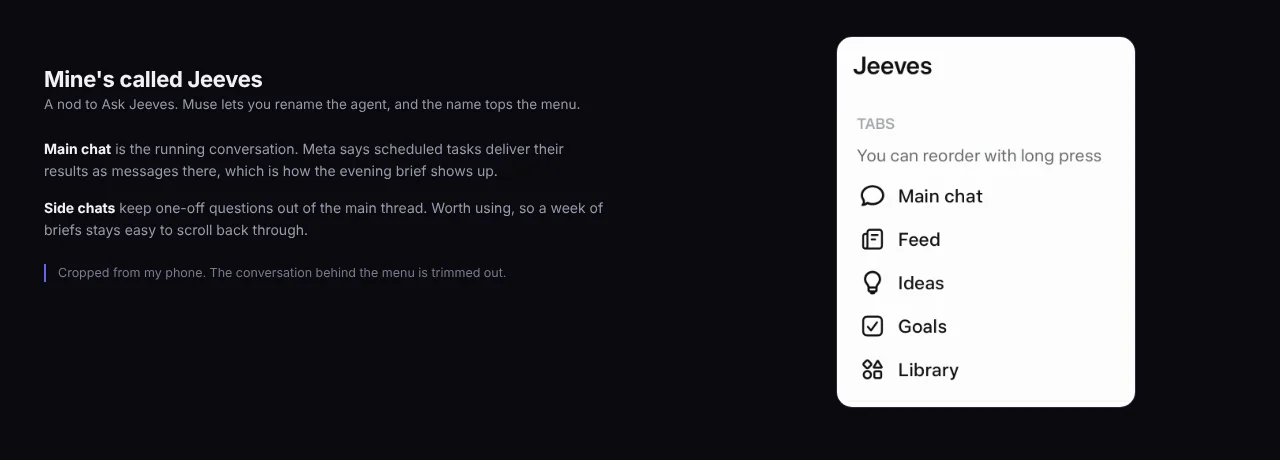
The name you pick replaces "Muse" at the top of the menu. Side chats keep one-off questions out of the thread your briefs land in.
Step 1: Connect Gmail, Read Only
School communication still runs on email. Newsletters, teacher notes, district closures, the PTA's eleventh reminder about the fundraiser.
Ask Muse "Connect my Gmail," or go to Settings, then Connectors, find Gmail under Productivity, tap Connect, and authorize (Meta's connector help). Meta says many connectors "can also be set up so that Muse is only able to retrieve data, but not take actions."
Once it's linked, the button next to Gmail changes from Connect to View, and Google Calendar works the same way.
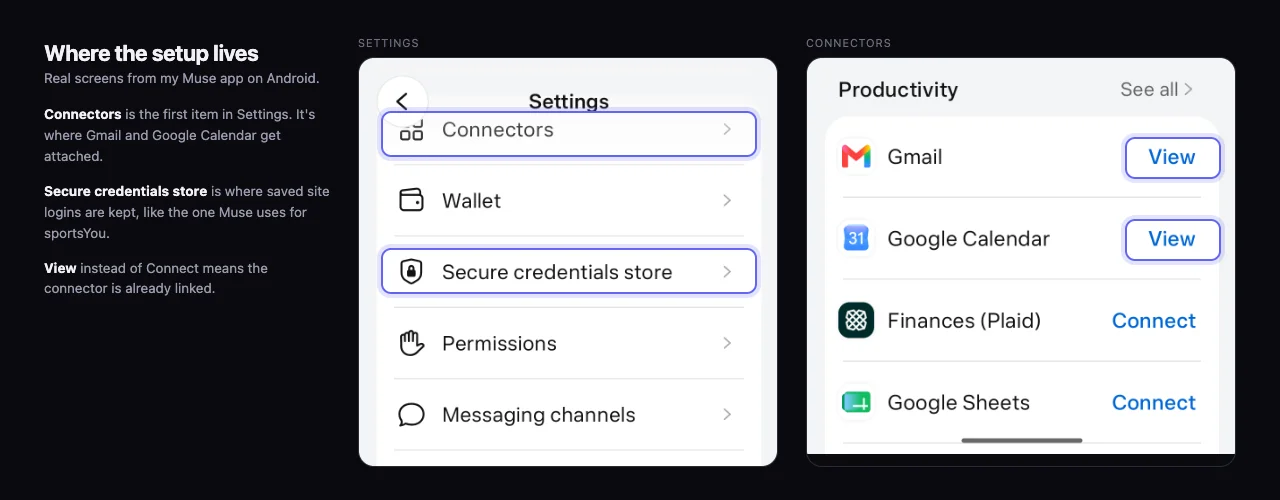
Connectors sits at the top of Settings. "View" next to Gmail and Google Calendar is how you know they're linked.
If Gmail offers a read-only option when you connect, take it. Muse needs to find school mail. It never needs to reply to a teacher on my behalf, and I don't want a model guessing at tone with the people who grade my kids.
Give Muse a short list of senders to treat as school: the district's domain, each teacher, the PTA, the attendance office. It's much better at "anything from these people" than at deciding on its own which of 200 emails matter.
Step 2: Let It See Your Texts
This is the source most people forget. The class group text is where "wear red tomorrow" and "pickup moved to the side lot" actually happen, and none of it ever becomes an email.
I'm on Android, and I gave Muse access to my texts on my phone. Android SMS is one of Meta's named device connectors, and after setup you manage it in your phone's own settings rather than inside Muse.
Important Consideration
On an iPhone, it's not the same. iOS doesn't hand third-party apps your text messages. The workaround is the Muse Mac app, which Meta says pulls from Messages, Calendar, and Notes with your permission.
That's also where it went wrong for one reviewer. Decrypt reported that Inc. columnist Jason Aten found Muse had synced more than 187,000 rows of his Mac's Messages history after he says he declined access.
Meta says it was opt-in. Either way, check macOS Full Disk Access yourself rather than trusting the app's own description.
Texts are also the highest-noise source. Tell Muse which threads count, by name, and that everything else is off limits for the brief.
Otherwise your brief will dutifully report that 14 parents replied "thank you!!" to the teacher.
Step 3: Sign Muse Into sportsYou
There's no sportsYou connector, so I signed into sportsYou inside Muse's own browser and told it to check the team calendars and coach posts.
When Muse needs a site login, you can sign in yourself in its browser. One reviewer describes logins going into secure storage that Muse uses "without ever seeing them, including passwords you type into the browser yourself." In the app, saved logins live under Secure credentials store in Settings, so you can see what's stored and remove it. I'd still use a sportsYou password you don't use anywhere else.
The browser beats a calendar feed for one reason, and it's the coach posts. A calendar shows the time. A post says "bring both jerseys" or "we're meeting at the other field," and that's the stuff that goes wrong, usually while you're already parked at the wrong field.
If you'd rather not hand Muse a login, sportsYou can export its calendar. In the app, open Calendar, tap the subscribe icon, toggle your teams on, and tap Copy Link, then add that link to Google Calendar (sportsYou's instructions).
Muse reads the result through the Calendar connector. You lose the coach posts, but there's no password involved.
Be explicit about limits. Tell Muse it reads sportsYou and never posts, comments, RSVPs, or messages a coach.
Step 4: Give Google Calendar Write Access, With Approval
This is the only connector that can change anything, so it's the one to get right.
Muse adds new events, moves ones that changed, and can label each with which kid and where it came from.
Keep approval on. Meta's default is that Muse won't take "many important actions" without your approval. Settings has a Permissions page. Look through it after setup, and don't loosen the approvals.
Approving each change costs a tap or two. It's also how I'd catch a misread text before it becomes a wrong pickup time on a shared family calendar, and a very quiet car ride home.
Important Consideration
Put Muse's events on a separate calendar inside your Google account, something like "Kids (Muse)." If it ever makes a mess, you hide or delete one calendar instead of picking through your own appointments.
Step 5: Schedule the Evening Brief
Muse supports recurring tasks. You describe the task and how often it repeats, Muse confirms it, and it shows up in the Upcoming tab (Meta's scheduling help). Results arrive as a message in your Muse conversation, and the task runs until you cancel it.
I run mine in the evening rather than the morning. A morning brief tells you about a uniform you can't wash in time. An evening one gives you the night to fix it, or at least to find it.
Here's a prompt that covers all four jobs. Adjust the time, names, and sources.
Every evening at 8pm, check:
- Gmail for anything from [school domain], [teacher names], and the PTA
- My texts in the [class parents] and [team parents] threads
- sportsYou, for every team the kids are on, including coach posts

Then send me a brief with four sections:
1. Tomorrow: every event, with times and locations
2. Changed: anything that moved or was cancelled since last night,
   and where you saw it
3. Conflicts: overlaps or tight handoffs across the kids and my calendar
4. Prep: forms, payments, uniforms, snacks, spirit days, due dates

Propose calendar changes on the "Kids (Muse)" calendar and wait for my
approval. If you can't get into sportsYou or any source, say so at the top.
Never send email, text, or post anywhere.
The "say so at the top" instruction is the important one. A brief that says "nothing changed" because sportsYou quietly logged it out is worse than no brief, because you'll believe it.
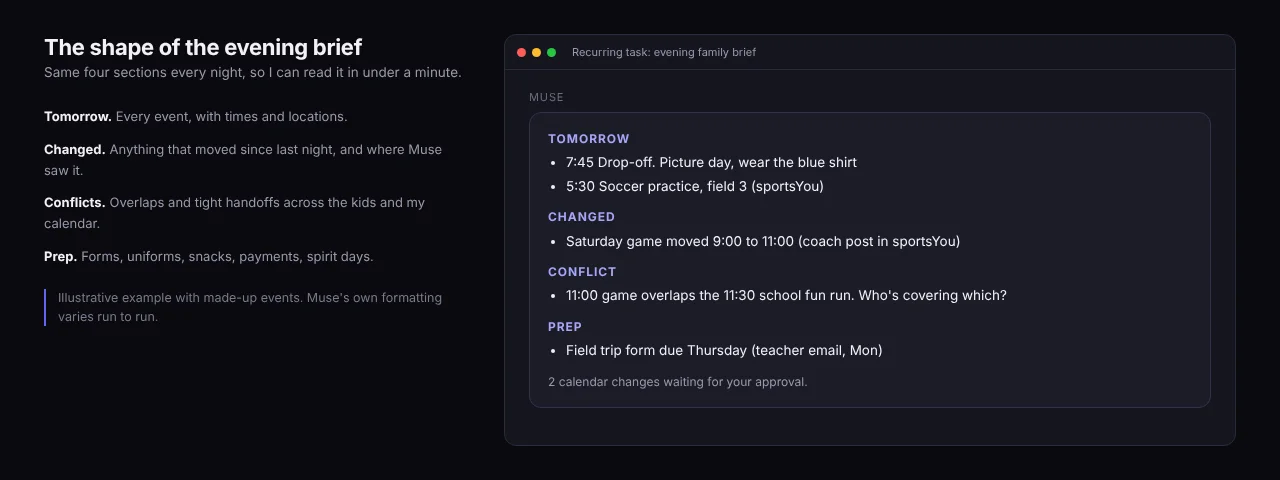
An illustrative brief with made-up events. The Changed and Conflicts sections are where it earns its keep.
What Actually Changed
The point was never for Muse to make some dramatic catch. It's that the family calendar stays current without me spending hours every week keeping it that way.
Before this, keeping it right meant scrolling back through school emails, reopening the class group texts, and clicking through each team in sportsYou to see what had moved. Then typing it all into the calendar by hand, once a week, and usually a little behind.
Now that review happens every evening without me. My part is reading one brief and approving the calendar changes it proposes, which takes a few minutes instead of an evening.
The calendar is also more trustworthy because it's updated daily instead of weekly. A practice that moved on Tuesday is on the calendar Tuesday night, not whenever the weekly review gets to it.
School information is where this helps most. Sports schedules are already structured, since sportsYou has a calendar. School information is prose scattered across emails and texts, and pulling a due date out of a paragraph is exactly what a language model is decent at.
What I'd Lock Down Before You Start
This is your kids' schedule, which means it's also where your kids are and when. Treat the setup that way.
- Turn off training. Meta uses eligible interaction data to train its models by default (The Neuron). You can opt out in Muse's settings.
- Don't share Muse chats. In October 2026, researchers found shared Muse chats could be discovered by third parties, and Meta suspended the feature. A chat about a kid's practice location is the last thing you want indexed.
- Remember the VM isn't sealed. Meta's policy limits its own access to your Muse data. But per Meta's documentation, the launch version doesn't stop Meta from accessing it when needed to "operate, support, or secure the service." A "Confidential VM" with a key only you hold is announced for later in 2026, not shipped.
- Expect injection risk. Meta's security documentation acknowledges that "prompt injection remains unresolved", and Muse is reading messages from other parents and the open web. Read-only everywhere except the calendar, with approval on, limits the damage if something odd gets through.
If you want the longer version of why read-only defaults matter for agents, I covered it in building secure AI agents.
What It Costs
As of October 2026, Muse has a free tier plus two paid plans, Power at $20 a month and Maximum at $100, according to launch coverage. Signup asks for a payment card even on free.
A once-a-day brief across three sources is a light job. My kids' schedule is chaotic, but it's not $100-a-month chaotic, so I'd start on free and only move up if the meter says so.
Meta also announced that Muse will get its own email address, so you could forward a school email straight to it. As of this writing it's "soon" with no date (TechCrunch). When it ships, it'd let you skip the Gmail connector entirely and just forward what matters.
Try Muse for the school year
Start on the free tier (signup asks for a card) with one source and the evening brief. Add the others once a week of briefs has matched what actually happened.
Use my referral code LUYLLR. Redeem it in Muse's Settings within 48 hours of joining and we both get 1 billion Muse tokens. Full disclosure, that's my personal referral, so I get the tokens too.
Frequently Asked Questions
Can Meta Muse read text messages on an iPhone?
Not from the iPhone app. Android SMS is a named Muse connector, but iOS doesn't give third-party apps access to Messages. The iPhone route is the Muse Mac app, which can pull from Messages with macOS permissions, so check Full Disk Access yourself before enabling it.
Does Muse work with sportsYou?
There's no sportsYou connector. You can sign into sportsYou in Muse's own browser so it reads team calendars and coach posts, or add sportsYou's calendar export link to Google Calendar and let Muse read it from there.
Is Meta Muse free?
There's a free tier with a usage limit. As of October 2026, the paid plans are Power at $20 a month and Maximum at $100. Signup requires a payment card even if you stay on free.
Will Muse email teachers or coaches without asking?
Not by default. Meta says Muse won't send email without your approval unless you change that setting. If your Gmail connector offers read-only access, connecting it that way removes the possibility entirely, which is what I'd recommend for a school setup.
How do I stop a recurring Muse task?
Ask Muse to cancel it by name, for example "cancel my evening family brief." You can see every scheduled task in the Upcoming tab, and recurring tasks run until you cancel them.
The Takeaway
Muse is good at the part of parenting logistics that's really reading comprehension, like pulling a date out of a newsletter or noticing when a coach moves a game. Sadly, it still can't drive.
Give it read-only access to everything except one calendar, keep approval on, and make it tell you when it couldn't check something. Then let the evening brief prove itself for a week before you stop checking sportsYou yourself.