
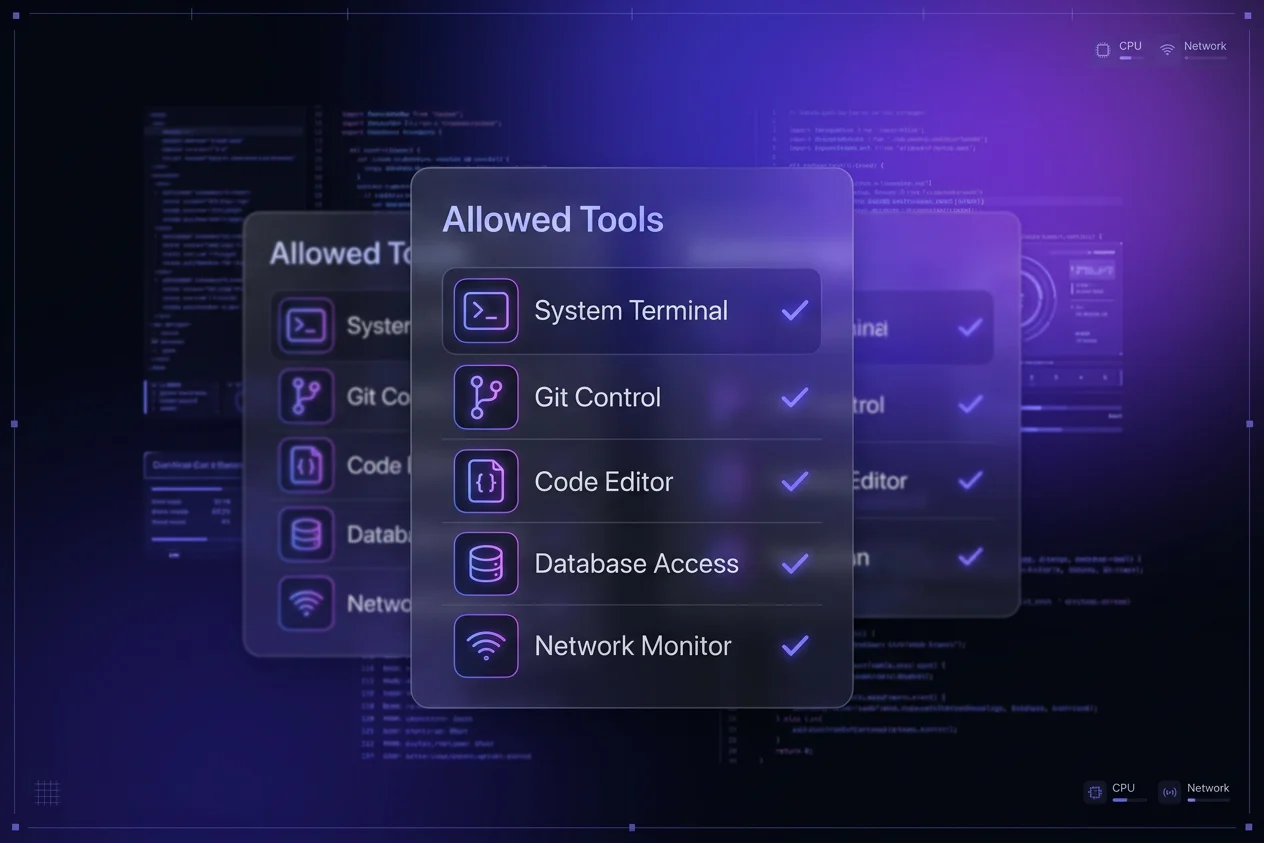
The Takeaway: Tool allowlists are the sweet spot between full YOLO mode and constant manual approval. By whitelisting safe, routine commands, you let your AI agent work at full speed on the boring stuff while keeping guardrails on anything destructive.
| Security Approach | Best For | Security Level |
|---|---|---|
| Tool Allowlists | Daily Workflows | Balanced (Pre-Approved) |
| Policy Engine | Shared Team Rules | High (Context-Aware) |
| YOLO Mode | Rapid Prototypes | Zero (Full Auto-Run) |
If you've spent any time with AI coding agents, you know the drill.
The agent wants to run git diff, then npm test, then read a config file -- and you're hitting 'y' every single time. After about the twentieth approval in a row, you start wondering why you're even there.
The answer isn't to flip on full YOLO mode and let your agent run wild. The answer is tool whitelisting -- selectively pre-approving the commands you trust so the agent only stops to ask when it actually matters.
Why Not Just Use YOLO Mode?
Full YOLO mode (or "dangerously skip permissions" in Claude Code) removes all guardrails. Every command runs without confirmation. That's fine for throwaway experiments, but it's a terrible idea for any project you care about.
I've seen agents confidently run rm -rf on directories they shouldn't touch. I've watched them force-push to main without blinking. YOLO mode trusts the agent completely, and frankly, that trust isn't always earned yet.
Important Consideration
YOLO mode has its place -- quick prototypes, sandboxed environments, or when you genuinely don't care if something breaks. But for daily development on real projects, you want more control than that.
The Middle Path: Tool Allowlists
The concept is simple: you define a list of pre-approved commands and operations, while everything else still requires your confirmation. The agent breezes through safe operations like reading files, running tests, and checking git status -- but it has to stop and ask before doing anything destructive.
Think of it like this: you're not giving the agent the keys to the house. You're giving it the keys to the front door and the kitchen, but the safe stays locked.
How to Set It Up in Gemini CLI
In Gemini CLI, you traditionally configure allowlists in your ~/.gemini/settings.json file. The tools.allowed array lets you specify exactly which shell commands the agent can run without asking.
Important Consideration
Important Update: Gemini CLI is moving towards a more robust Policy Engine. While simple allowlists still work, the Policy Engine allows for more sophisticated, context-aware permissions that can be shared across teams.
Here's a practical starter config for the classic allowlist:
{
  "tools": {
    "allowed": [
      "run_shell_command(npm run lint)",
      "run_shell_command(npm run test)",
      "run_shell_command(git status)",
      "run_shell_command(git diff)",
      "run_shell_command(git log)"
    ]
  }
}
This lets the agent freely run your linter, test suite, and read-only git commands. But if it wants to git push, npm install a new package, or run anything else -- it has to ask you first.
Start small. Whitelist your most common read-only operations first, then gradually add more as you build confidence in your agent's judgment.
You can also get more specific with infrastructure commands. If you're working with AWS and want the agent to check logs without approval, add those too:
{
  "tools": {
    "allowed": [
      "run_shell_command(aws logs)",
      "run_shell_command(aws cloudwatch)",
      "run_shell_command(aws codebuild)",
      "run_shell_command(git status)",
      "run_shell_command(git diff)"
    ]
  }
}
This pairs beautifully with setting up feedback loops for your agents. When the agent can freely read CloudWatch logs and CodeBuild output, it becomes dramatically better at self-correcting without waiting on you.
How to Set It Up in Claude Code
Claude Code takes a different approach with a more granular permission system. Instead of a single allow list, you get three tiers: allow, deny, and ask. Rules use glob-style patterns and are evaluated in order: deny first, then ask, then allow.
Here's a solid starting configuration for your .claude/settings.json:
{
  "permissions": {
    "allow": [
      "Bash(npm run *)",
      "Bash(git diff *)",
      "Bash(git status)",
      "Bash(git log *)",
      "Read(./src/**)",
      "Read(./docs/**)",
      "Edit(./src/**)"
    ],
    "deny": [
      "Bash(rm -rf *)",
      "Bash(sudo *)",
      "Bash(git push --force *)",
      "Read(./.env)",
      "Read(./.env.*)",
      "Read(./secrets/**)"
    ],
    "ask": [
      "Bash(git push *)",
      "Bash(git commit *)",
      "Bash(npm install *)"
    ]
  }
}
This setup is powerful because of the three tiers. The agent can freely read your source code and run tests, but it cannot read your .env files or run destructive commands no matter what. It will also pause to confirm before pushing, committing, or installing new dependencies.
Claude Code supports multiple scope levels: User (~/.claude/settings.json), Project (.claude/settings.json in your repo), and Local (.claude/settings.local.json for personal overrides). Use project-level settings for team-shared guardrails and local settings for your personal workflow preferences.
What to Whitelist (and What Not To)
Not sure where to start? Here's my recommended approach based on months of daily agent usage.
Safe to whitelist (read-only or low-risk):
git status,git diff,git log-- read-only git operationsnpm run test,npm run lint,npm run build-- your standard scripts- File reads on source directories
- Cloud monitoring commands (
aws logs,aws cloudwatch)
Keep on ask (moderate risk):
git commit-- you want to review the messagegit push-- always worth a glance before it goes to remotenpm install-- new dependencies deserve scrutiny- File edits outside your source directory
Always deny (high risk):
rm -rf-- obvioussudoanything -- just don'tgit push --force-- protect your history- Reading
.envor secrets files -- keep credentials away from the agent
The Real-World Impact
After setting up allowlists on my own projects, the difference was immediate. Tasks that used to involve twenty manual approvals now flow with maybe two or three meaningful pauses, like reviewing a commit message or confirming a push to remote.
The agent spends more time doing and less time waiting. And because I'm only interrupted for decisions that actually matter, I stay in flow instead of becoming a human "yes" button.
Important Consideration
The goal isn't to remove yourself from the loop entirely. It's to make sure that when the agent does stop to ask you something, it's genuinely worth your attention.
Getting Started Today
Here's the quickest path to a faster workflow:
- Pick your agent: Gemini CLI uses
~/.gemini/settings.json. Claude Code uses.claude/settings.json. - Start with read-only: Whitelist
git status,git diff,git log, and your test/lint commands. - Run for a day: Notice what else the agent keeps asking about. If it's safe, add it to the list.
- Iterate: Your allowlist should grow organically based on your actual workflow, not a generic template.
The best config is the one you build yourself, tuned to how you actually work.
Level Up Your Agent Workflow
New to AI coding agents? Start with our guide to the three types of agent workflows to understand where tool whitelisting fits into the bigger picture.
Final Verdict
Tool whitelisting is one of those small configuration changes that has an outsized impact on your daily productivity. It takes five minutes to set up and saves you hours of mindless approvals every week.
You don't have to choose between full control and full speed -- allowlists give you both. Start small, iterate based on your workflow, and watch your agent transform from a polite but slow assistant into a fast, focused teammate.